Interior design rendering software: from your SketchUp view to a photoreal room in 30 seconds
Upload a screenshot of your SketchUp, Revit, 3ds Max, Rhino, ArchiCAD or Chief Architect view, a white clay model or a hand sketch of the room. Describe the finishes and the light. This interior design rendering software returns a photorealistic image in about 30 seconds, with no materials to assign, no lights to place and no render queue.
It is interior rendering software for the concept stage: fast option rounds for clients, before you invest hours in a polished render in a classic engine.
How it works: model view in, photoreal interior out
- Set up the camera in your own program. In SketchUp save a Scene, in Revit a 3D view, in 3ds Max, Rhino, ArchiCAD or Chief Architect a camera. Eye height (about 1.5 m / 5 ft) and a slightly wide lens read best for rooms. Our SketchUp to render guide and the Revit to render guide show the export settings step by step.
- Export or screenshot the view. A white clay (monochrome) or hidden-line style is the cleanest input, because the AI is free to apply the finishes you describe. A textured view works too if you want to keep its materials. Plan views and line drawings are covered in the CAD to render guide; a photo of a hand sketch works as well (see the sketch to render guide).
- Write the brief like a finish schedule. Style, cabinet and floor finishes, worktop, metal finish, lighting fixtures, window direction and time of day. End with what must not change: “keep the geometry, layout and camera of the model exactly”.
- Render, compare, re-run. About 30 seconds per image. Put the result next to your view; if a window moved or the island got longer, re-run or ask for that one fix.
- Make precise edits. Change one thing at a time with a follow-up prompt: “swap the oak for walnut”, “remove the bar stools”, “make it evening with the pendants on”. Download the image as a 2K PNG or JPG (4K with a 4K pack).
Examples from the same render engine
To be clear up front: we do not yet have a SketchUp-screenshot-to-interior example pair on this page. What we can show is the same engine working on interiors (edits of room photos) and on drawings and sketches (exteriors). Each pair links to the tool page it comes from.
Interiors: the room stays, the change you asked for is rendered
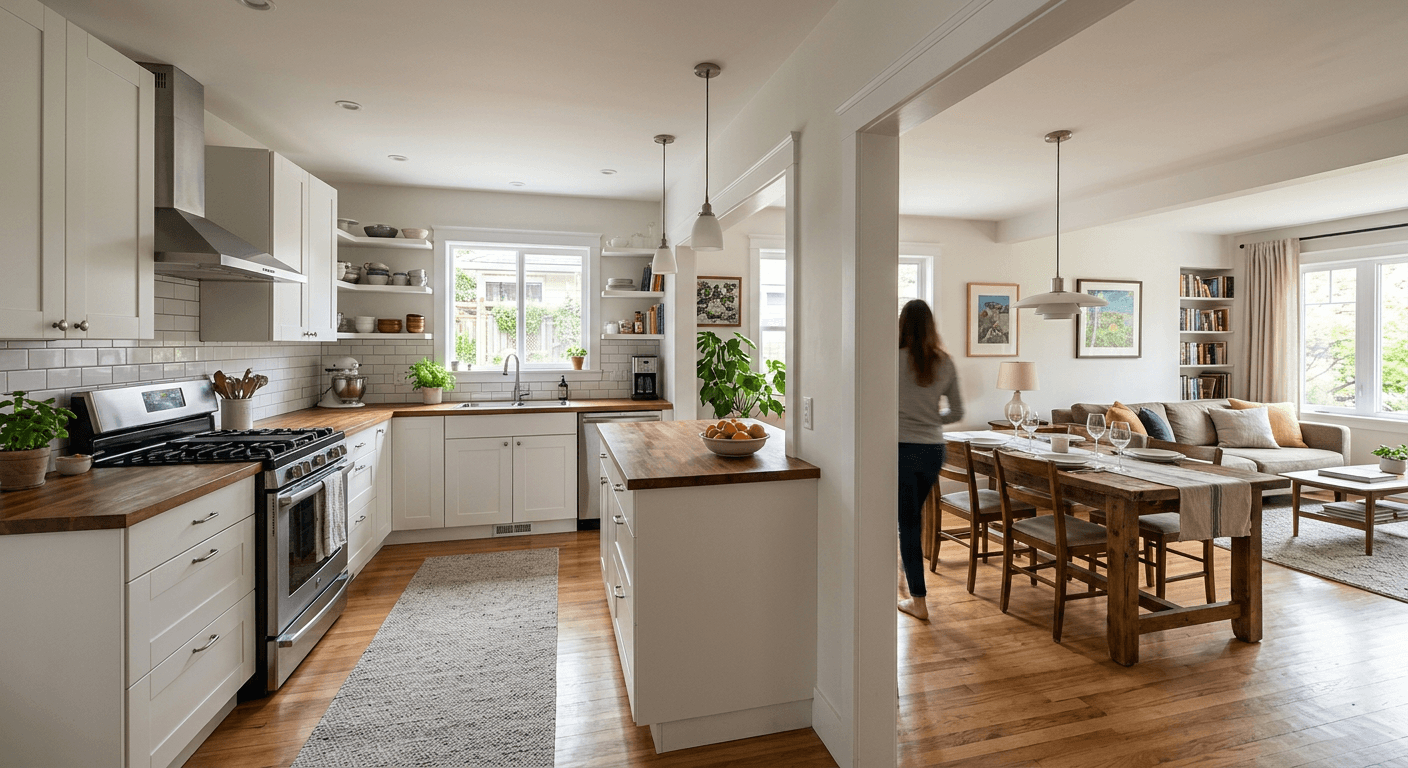
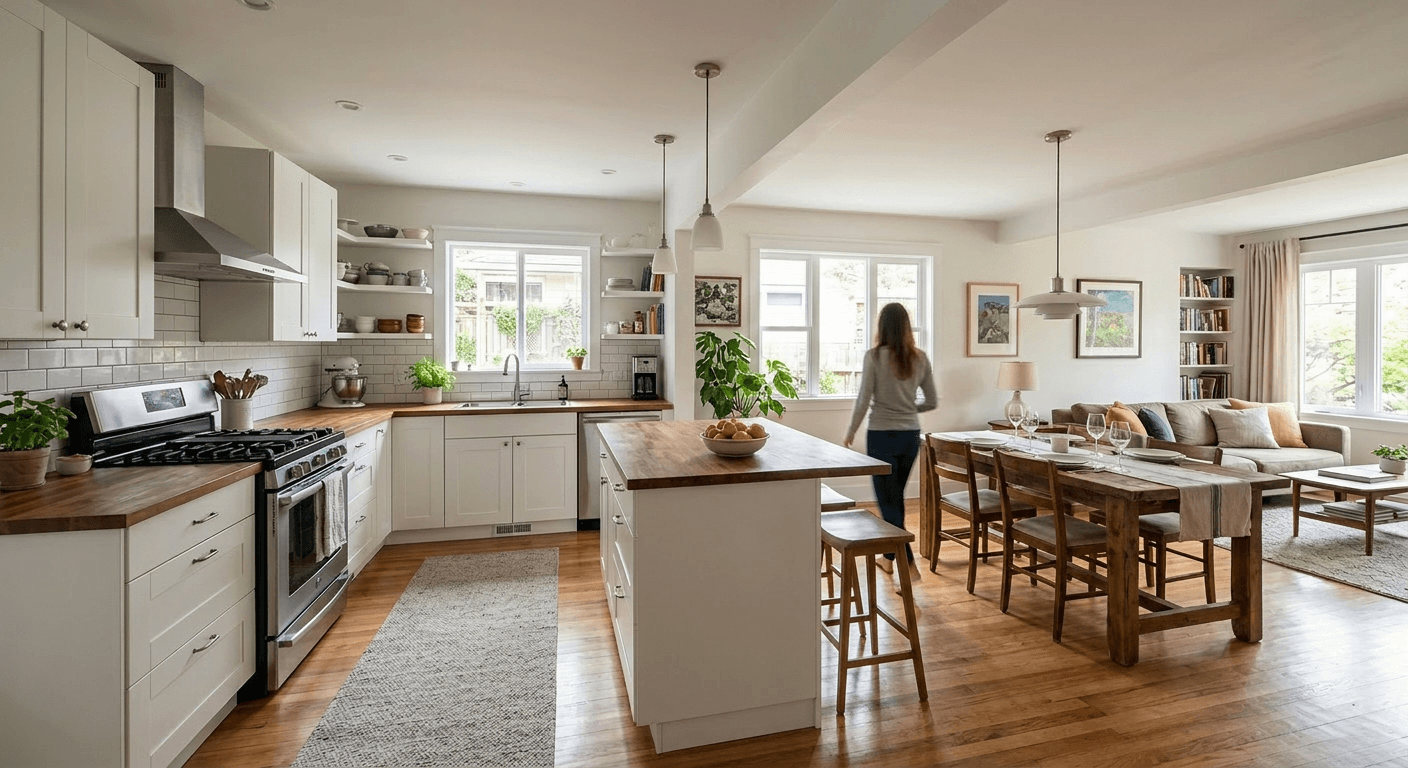
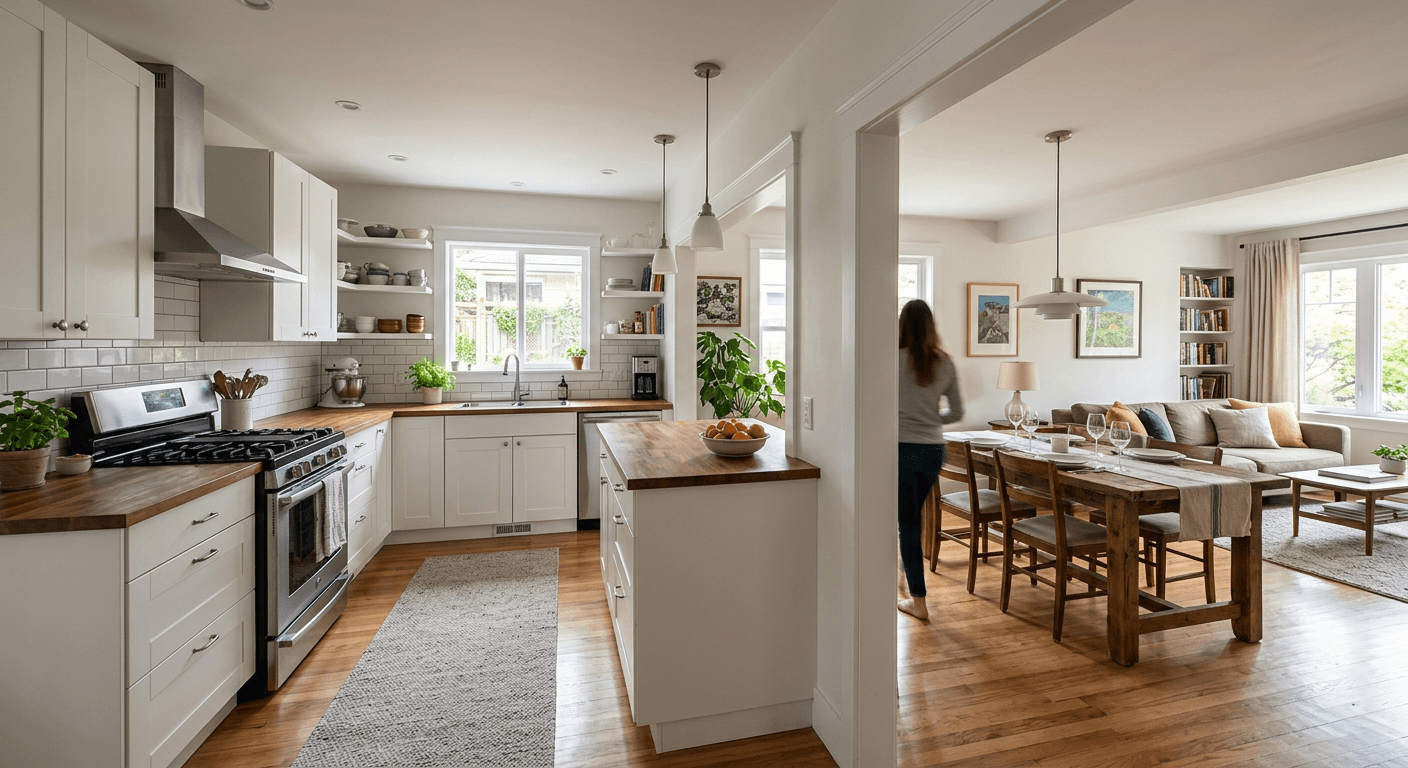
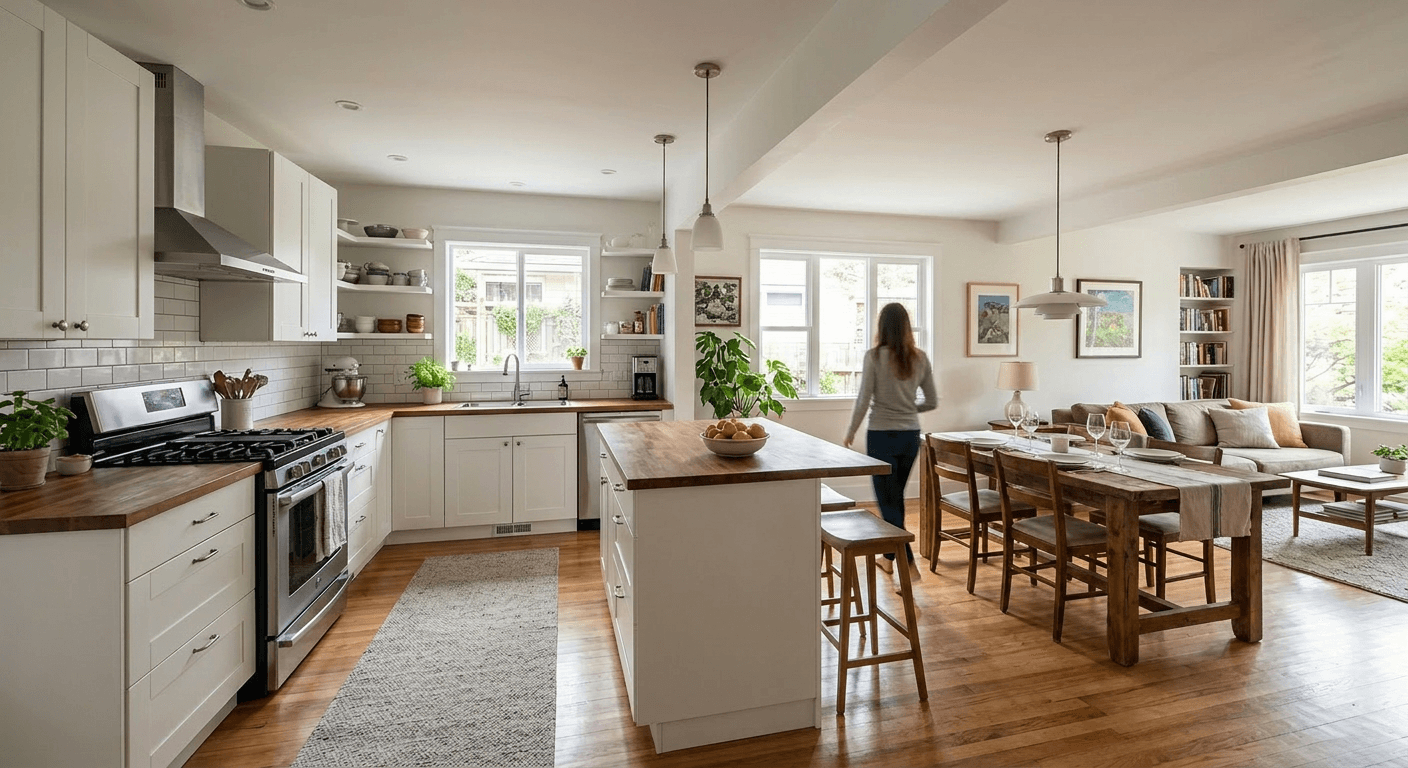
Prompt: open the kitchen to the dining room. The cabinets, island, floor, window and camera stay where they were; the AI removed the wall section and added stools. Example from our gallery. The after image is AI output of this tool; the before photo is an illustrative sample. From the open-concept kitchen visualization.
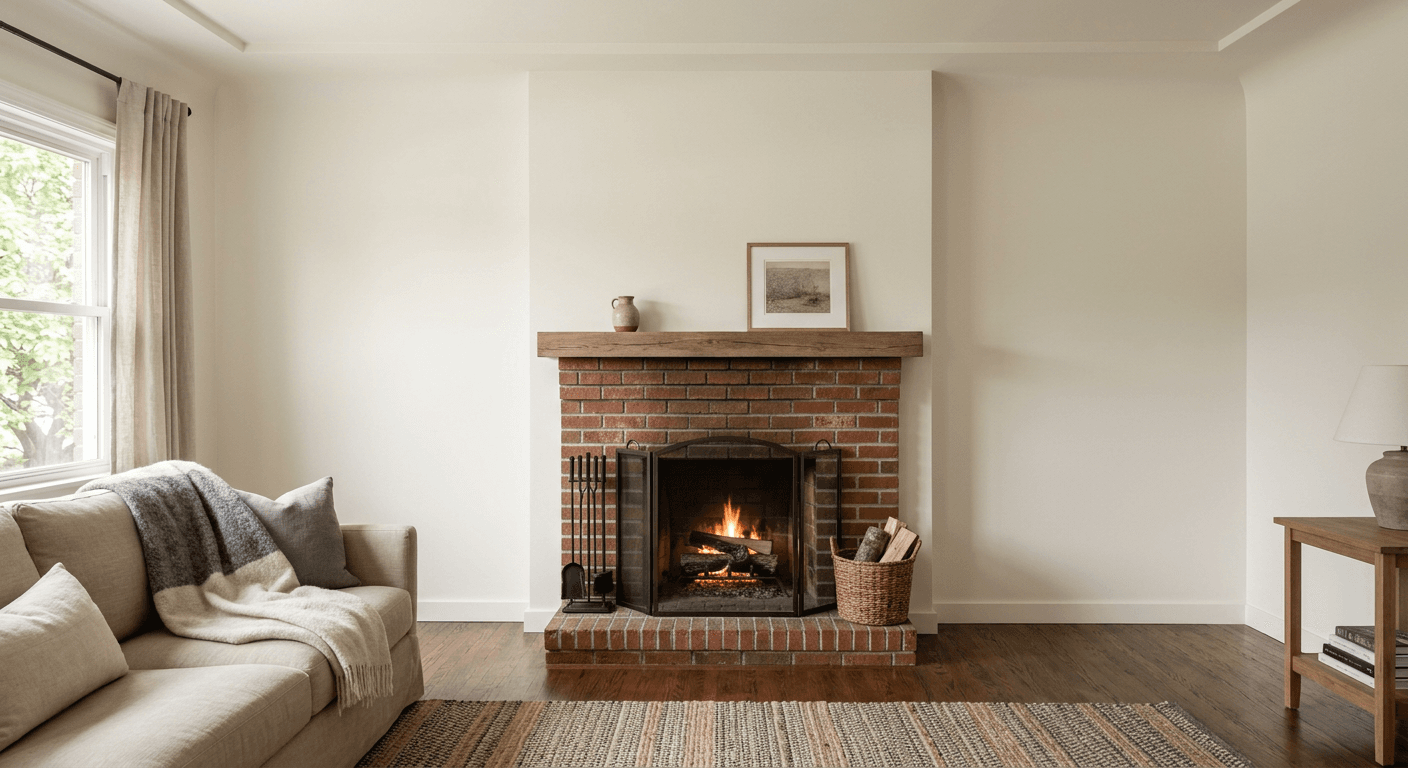
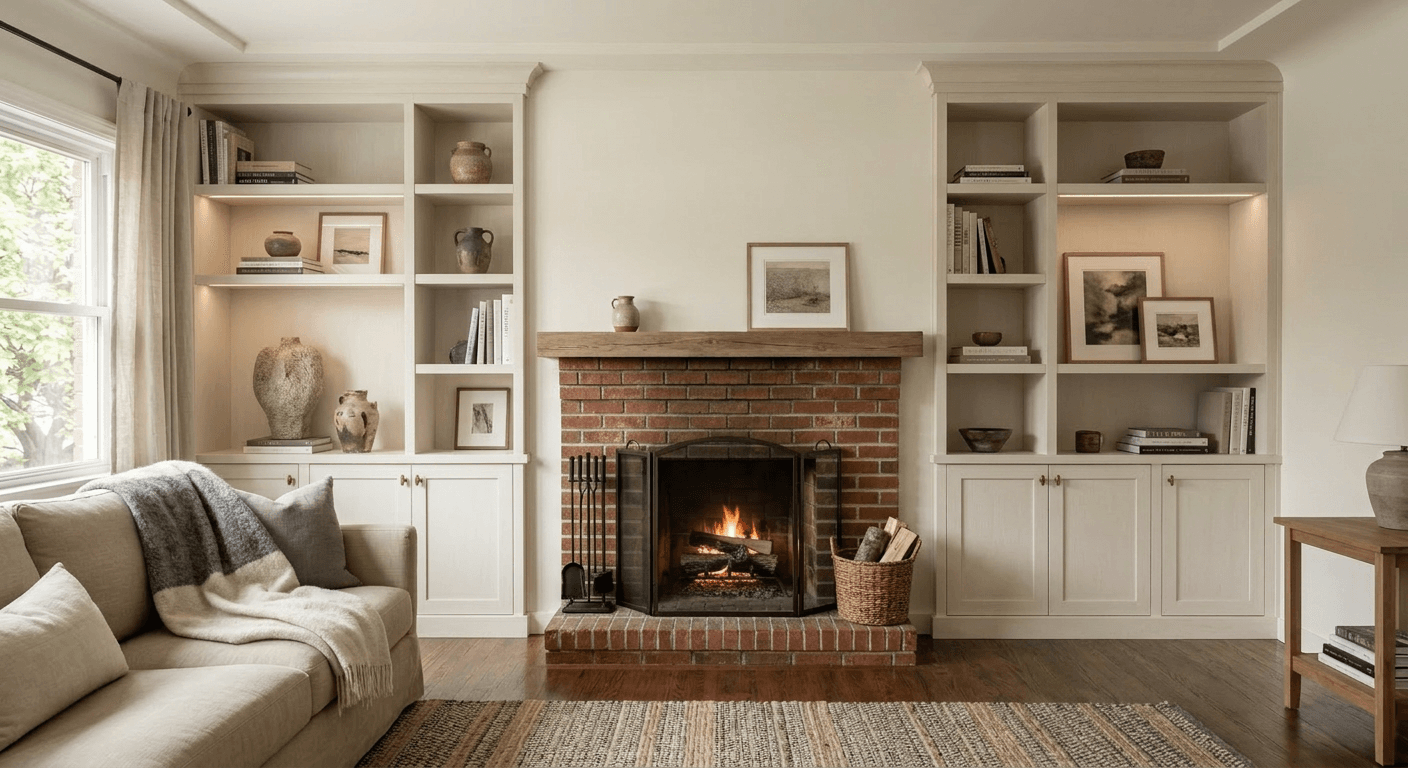
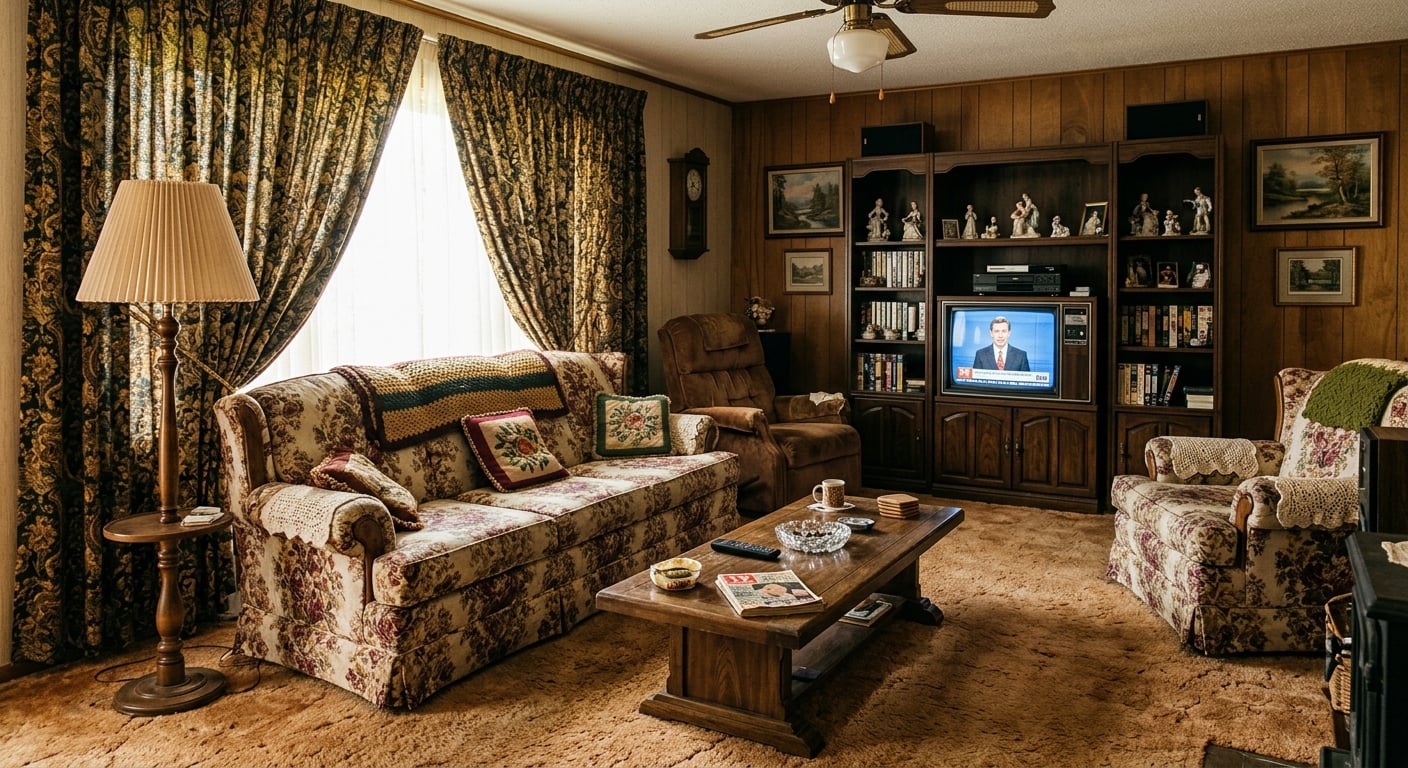
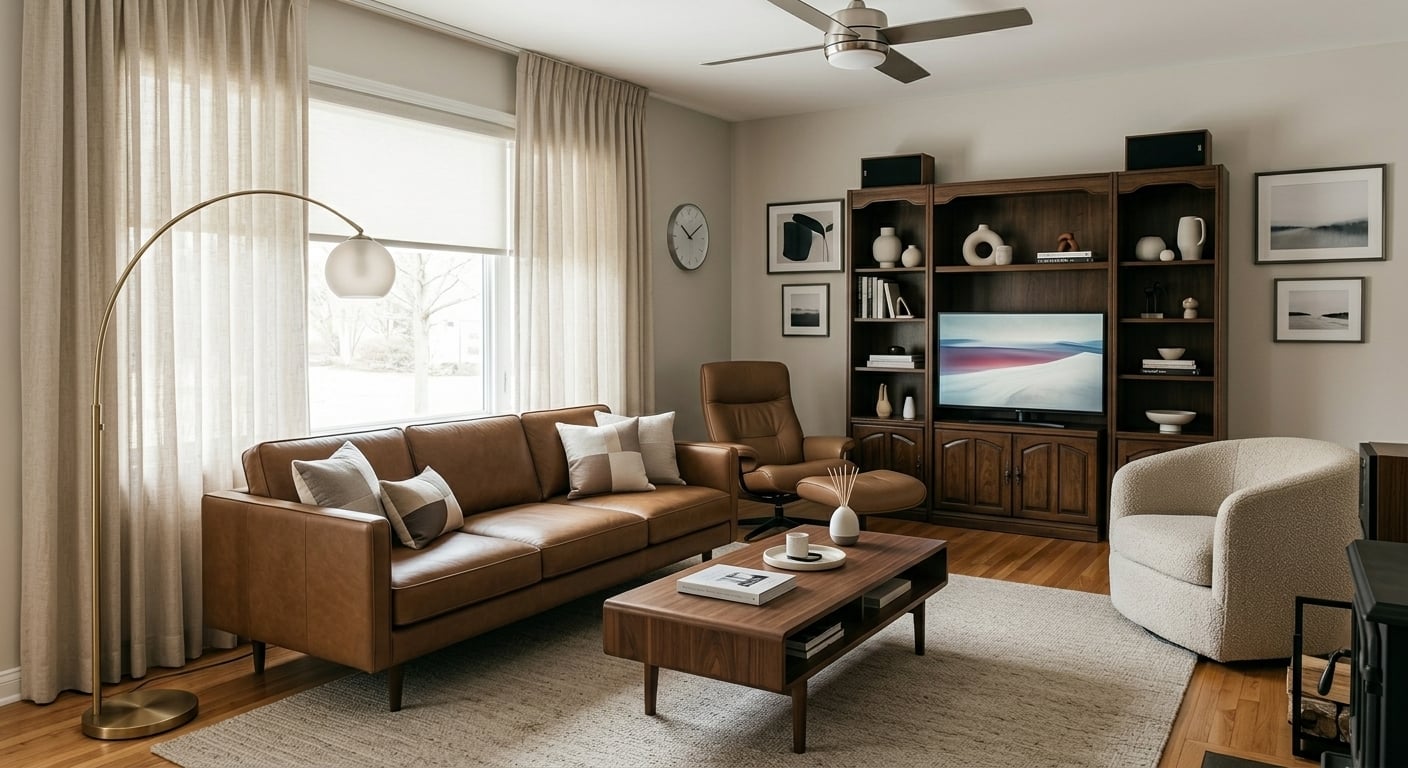
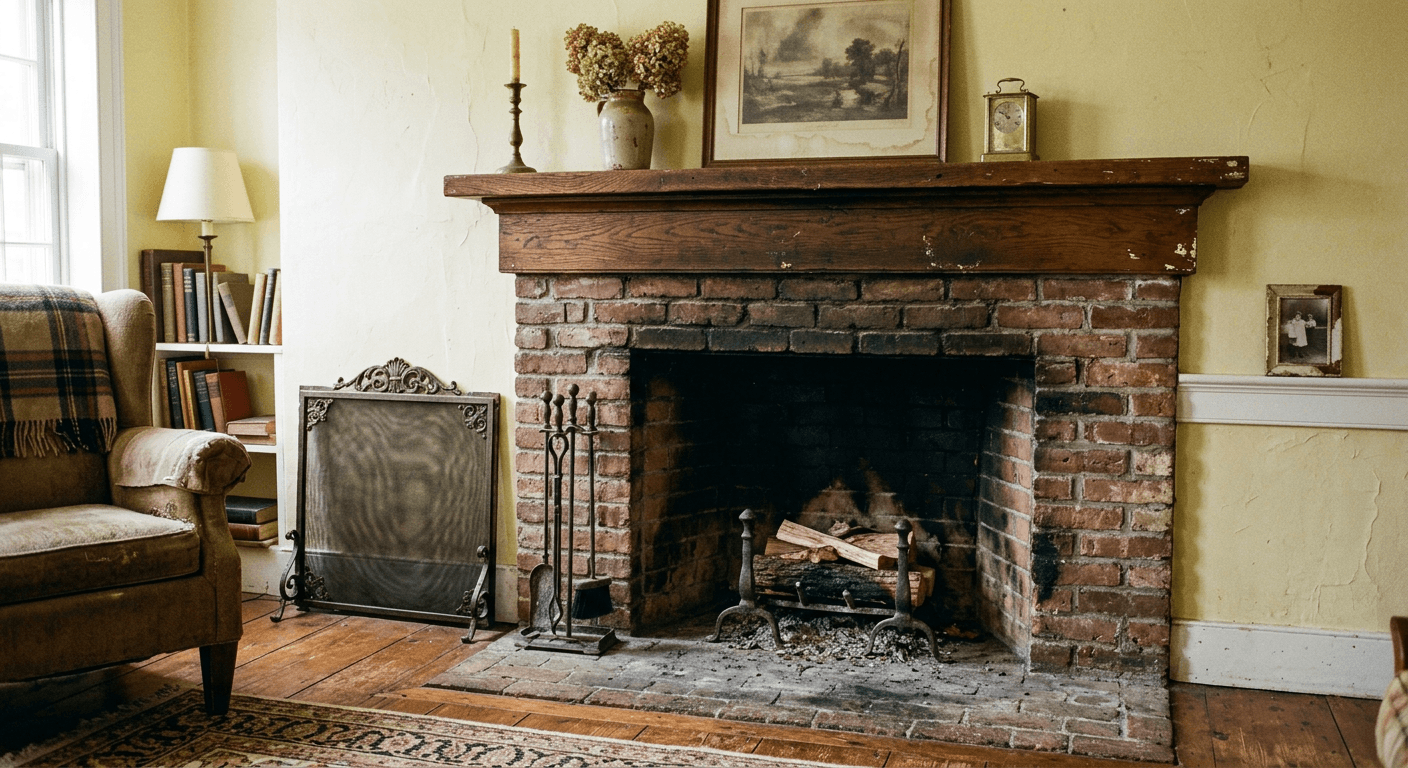
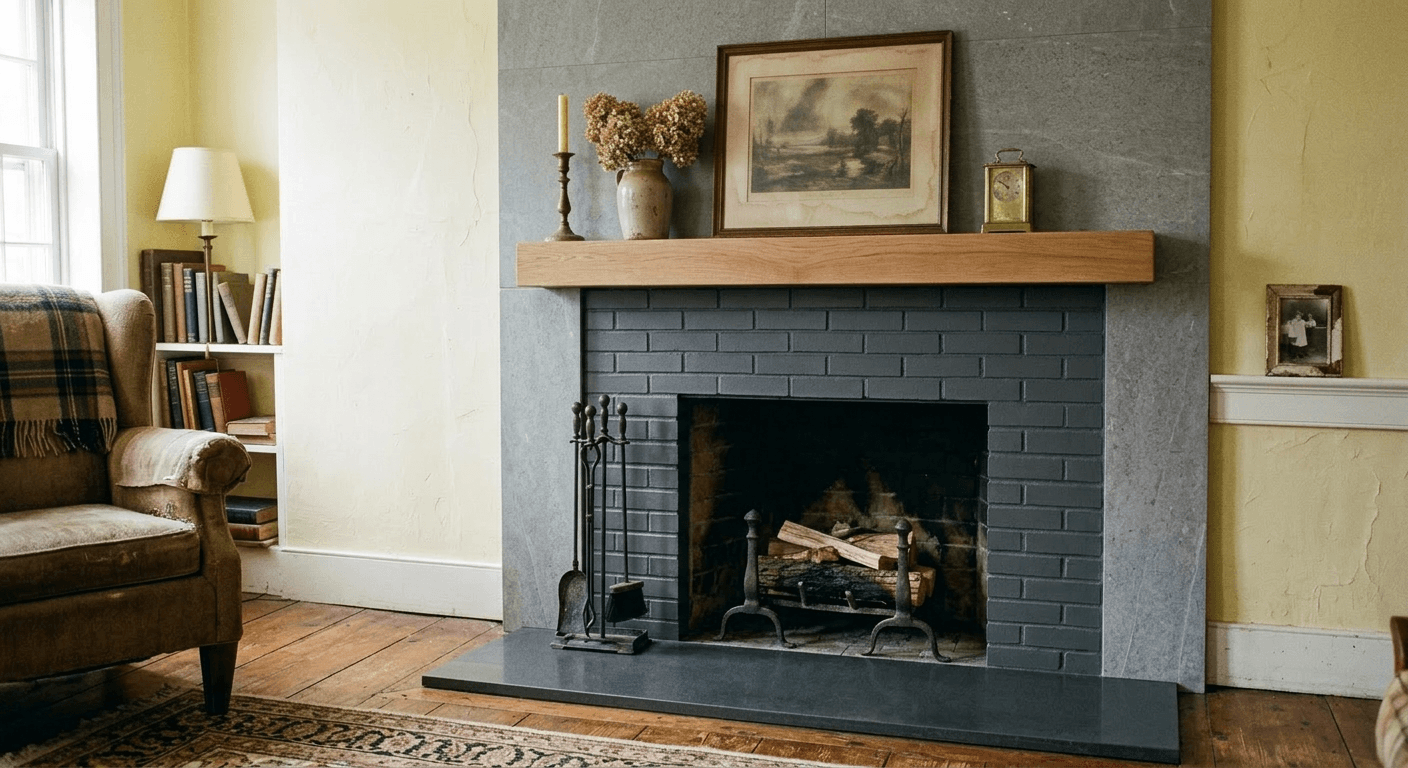
Prompt: add built-in shelves with lower cabinets either side of the fireplace. Brick, mantel, sofa, rug and window are unchanged. Example from our gallery. The after image is AI output of this tool; the before photo is an illustrative sample. From the living room built-in shelving visualizer.
Sketch and drawing to photoreal (exterior examples)
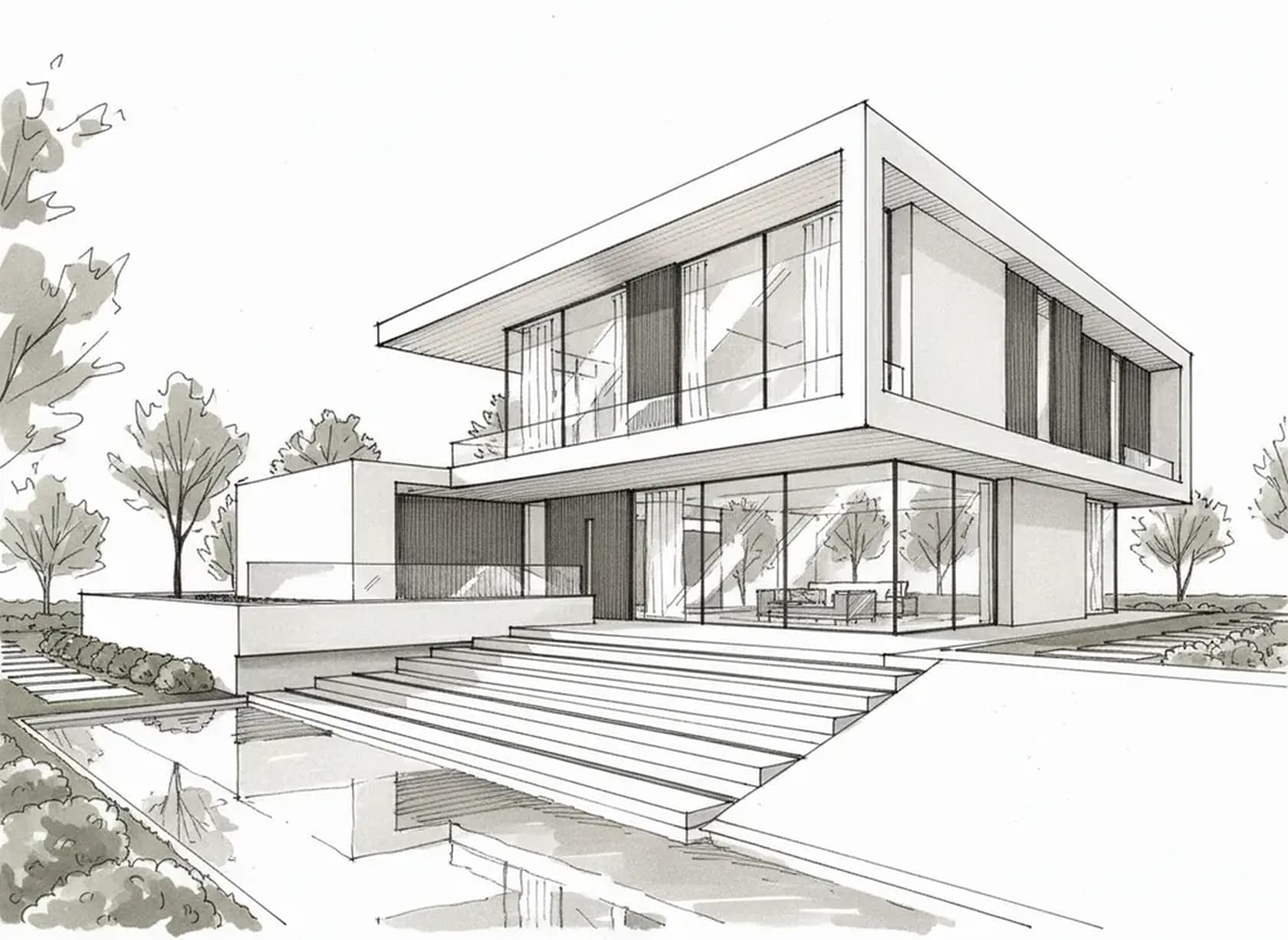
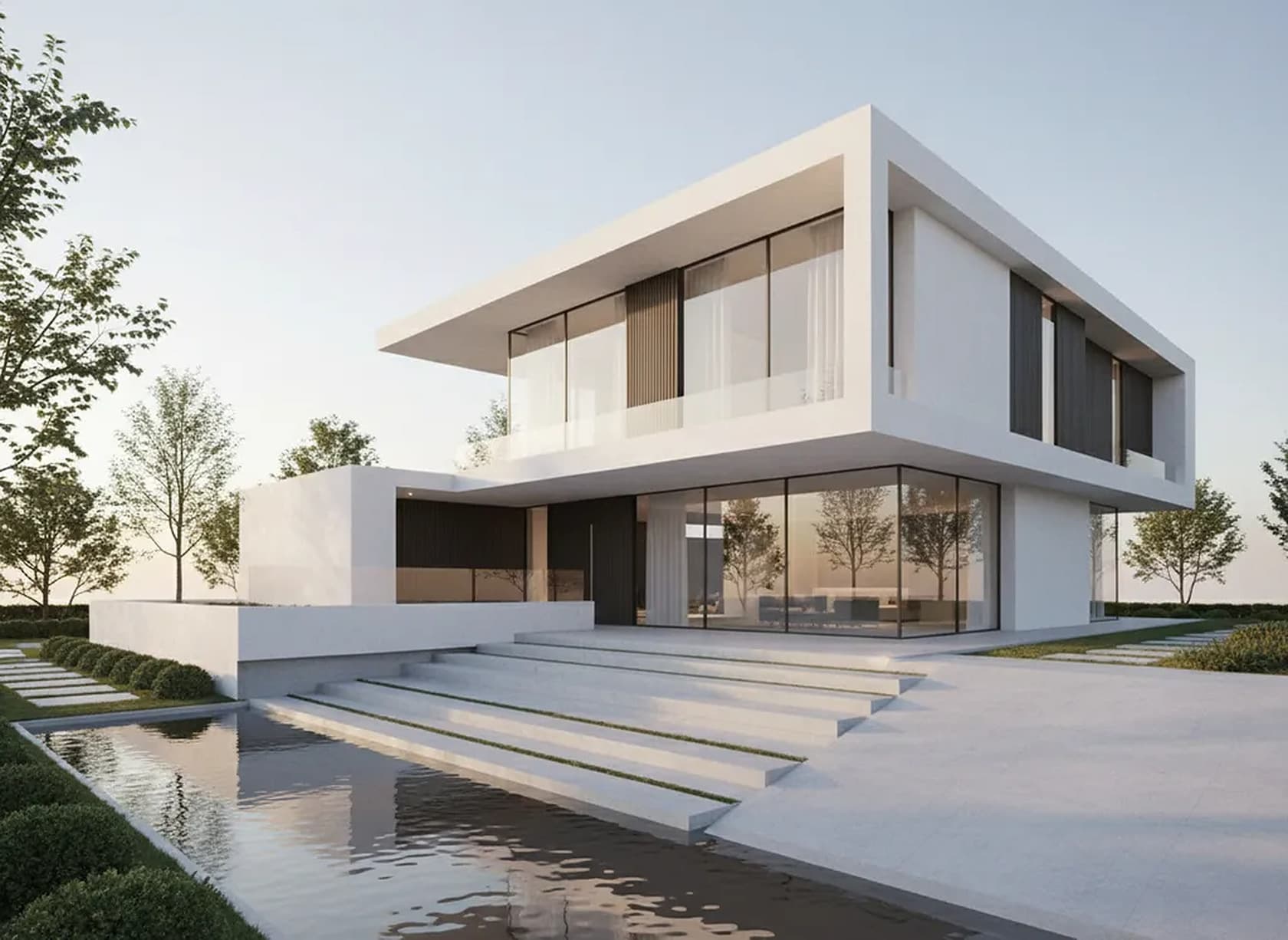
This one is an exterior, shown because it is the clearest example of the sketch-to-photoreal step that interiors use too: the line drawing fixes the geometry and camera, the prompt adds materials and light. More in sketch to photoreal render.
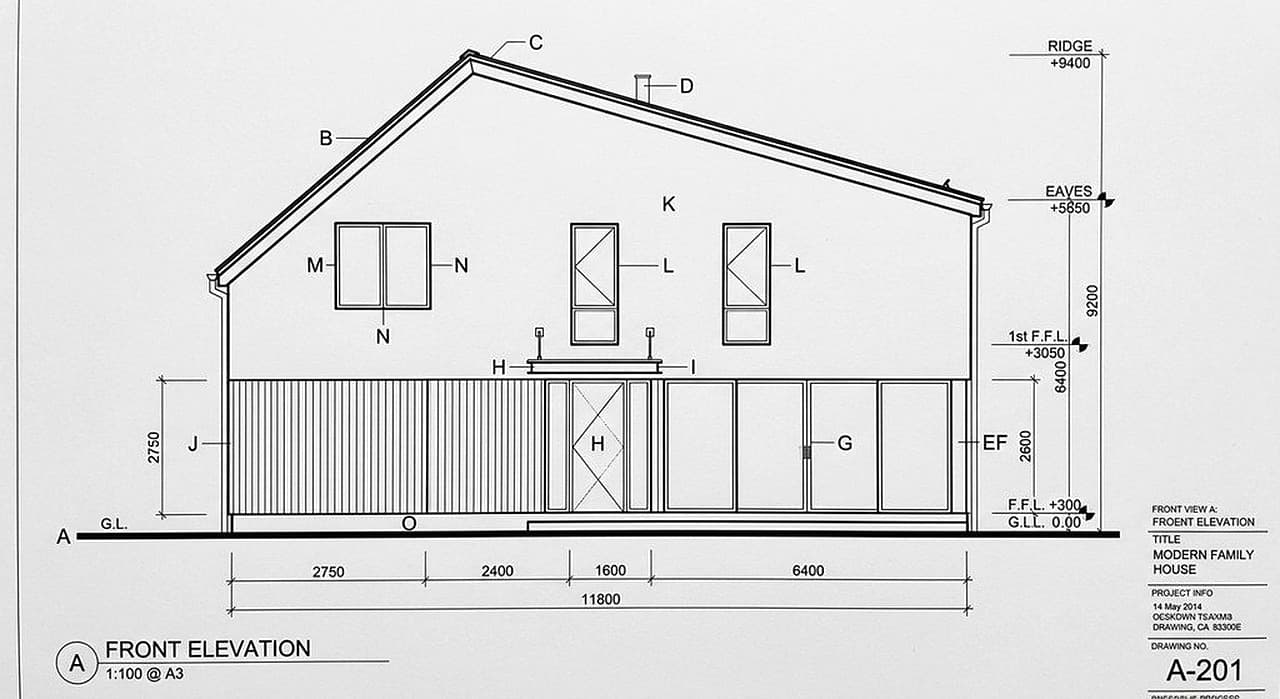
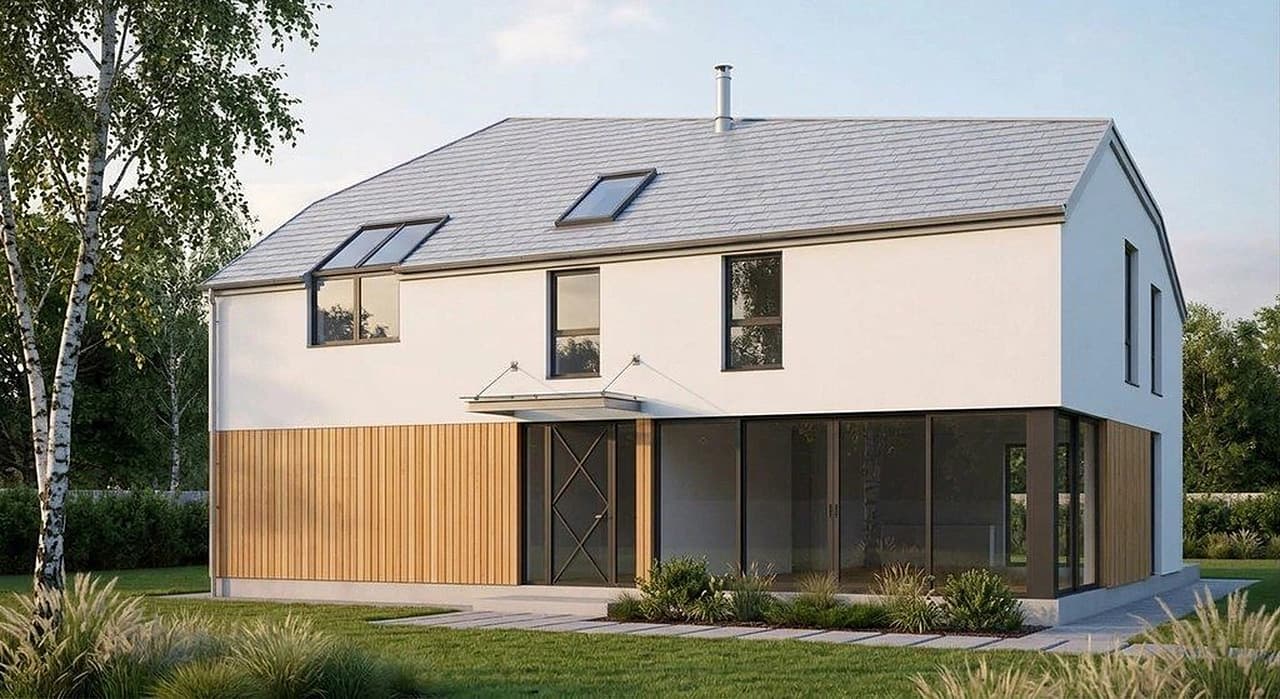
Also an exterior. Note the honest flaw: the AI read the roof as a side gable and added roof windows, which a follow-up prompt fixes. Expect the same kind of drift indoors (a window, a cabinet run). From AI rendering software for architects. All examples: before and after gallery.
What interior designers render with it
- Option rounds for a client. One SketchUp scene of a kitchen rendered in three palettes: white shaker with marble, oak with quartz, dark green with brass. See the virtual kitchen remodel, white kitchen cabinet visualizer and marble countertop visualizer for those exact jobs.
- Layout ideas on an existing room. Open a wall, add an island, add built-ins, change the lighting: kitchen island addition, kitchen lighting upgrade, fireplace makeover, dated living room modernization.
- Bathrooms and tile. Test tile layouts and colours before ordering samples: virtual bathroom remodel, shower tile design, bathroom wall tile visualizer.
- Unfinished spaces. Show a client what a raw basement or attic becomes: basement finishing, attic conversion.
- Hospitality and commercial interiors. Cafes, restaurants, gyms, offices: see the zen cafe interior designer, Asian restaurant designer and craftsman home gym designer.
- Furnishing empty rooms. For listing photos of empty rooms, use virtual staging instead.
If you want the AI to propose the design rather than render yours, start with our AI interior design software page; for whole-house renovations, the home remodel design software page. Style names that work well in prompts are collected under architectural styles.
Who it is for
Interior designers and decorators who model in SketchUp or Chief Architect and need presentable images faster than a full render setup allows. Architects who want an interior mood image next to the exterior concept (see AI for architects and the AI architecture generator). Kitchen and bath showrooms, contractors and design-build firms who sell from sketches. Homeowners who drew their own layout and want to see it before hiring anyone; for a whole new home, AI house design is the better start.
It is not for visualisation studios whose deliverable is a final, product-accurate image set or an animation. They already have the right tools.
AI rendering vs. V-Ray, Enscape, Lumion, Corona, D5 or Twinmotion
The classic route for an interior render is the same in every engine: open the 3D model, assign real materials to each surface (often from a manufacturer library), place and tune lights, set exposure and camera, then render and post-process. For one polished, product-accurate image that is hours of setup, and it is the only way to get exact materials, physically based light and many matching views from one model.
The AI route skips that: one picture of your view plus a written brief, about 30 seconds per image, any number of variations. You get a believable photoreal room, but the AI interprets the materials rather than reading them from a library.
| Factor | This AI renderer | Classic render engine |
|---|---|---|
| Input | Screenshot of a view, clay model, sketch or photo | The full 3D model with materials and lights |
| Time to a first image | About 30 seconds | Setup plus render time, often hours for a polished image |
| Materials | Interpreted from your words and references | Exact, incl. manufacturer materials |
| Geometry and camera | Followed closely, can drift slightly | Exact |
| Same room, many views | Not guaranteed; re-run and pick | Consistent by design |
| Animation, VR, 360 | No | Yes, depending on the engine |
Our recommendation is the hybrid: use AI for early concepts and option rounds, where speed and quantity win, and render the approved design in your classic engine where exact matching matters. The longer comparison is in AI vs. traditional rendering. If you are choosing between AI tools, see the mnml.ai alternative, the Veras alternative page and all comparisons.
What it does not do
- It is not a 3D modeler. It renders a picture of your model; you cannot orbit the result or move the camera in it.
- No exact manufacturer materials or SKUs. “White quartz” becomes a convincing white quartz, not a specific slab.
- Geometry and camera can drift slightly: a window, a door, a cabinet length. Always compare with your view.
- Consistency of one room across many views is not guaranteed. Reuse the same finish list, add a reference image, re-run and pick.
- No animation, walkthrough, VR or 360 panorama. Still images only.
- No measured output: no dimensions, drawings, material lists or cost estimates.
- For final construction-set visuals with exact specs, a classic renderer is still the tool.
Need the plan itself? Turn a sketch into a clean 2D floor plan at floorplan.ai-architectures.com, or get a measured floor plan, a 3D model and DXF/IFC files in Plan Chat (same account).
Pricing
Plans from $12/month (Lite, about 20 generations a month; $9/month billed yearly). Starter is $29/month for about 50. Cancel anytime. No free tier or trial. Each render or edit is one generation; commercial use is included. See all plans.
FAQ
Is this an alternative to interior rendering services?
For concept and option rounds, yes: instead of sending a view to an interior rendering service and waiting for the image, you upload it here and get a photoreal render in about 30 seconds, then make changes yourself. For final hero images that must match exact products, or for animations and 360 tours, a rendering studio is still the better buy. More on that trade-off: AI rendering service vs a 3D rendering studio (link below).
What is the best rendering software for interior design?
It depends on the job. For early concepts and option rounds, an AI renderer like this one is the fastest route: upload a view of your model or a sketch, describe the finishes, and get a photoreal image in about 30 seconds. For final visuals that must match exact manufacturer materials, for animations, walkthroughs or 360 panoramas, a classic render engine such as V-Ray, Corona, Enscape, Lumion, D5 or Twinmotion working from your full 3D model is still the right tool. Many designers use both.
Is this 3D rendering software for interior design?
It renders from a view of your 3D model, but it is not a 3D modeler. You build and position the room in SketchUp, Revit, 3ds Max, Rhino, ArchiCAD or Chief Architect, export or screenshot the view, and the AI turns that picture into a photoreal image. You cannot orbit the result or change the camera inside a 3D scene; for a new angle you upload a new view.
Which programs does it work with?
Any program that can show the room on screen. There is no plug-in to install: a SketchUp scene export, a Revit 3D view, a 3ds Max or Rhino viewport, an ArchiCAD or Chief Architect camera view, or a plain screenshot all work. A white clay or hidden-line view is often the cleanest input. A photo of a hand sketch works too.
Will the render keep my layout and camera?
Mostly, when you say so in the prompt ("keep the geometry, layout and camera exactly"). AI can still drift slightly: a window can shift, a cabinet run can change length, proportions can stretch a little. Compare the result with your view and re-run or fix it with a short follow-up prompt.
Can I get the exact material or product I specified?
No. The AI interprets materials from your words and any reference image you add, so "light oak, white quartz, matte black tap" comes out as a believable version of those finishes, not a specific manufacturer product or SKU. When the client must see the exact tile or fabric, render that view in a classic engine with the real material.
Can I render the same room from several angles consistently?
Each view is rendered separately, so consistency across views is not guaranteed. Use the same finish list in every prompt, add your favourite render as a reference image, and re-run until the views match well enough. For a set of matching views of one room, a classic engine working from the 3D model is more reliable.
Does it do animations, walkthroughs, VR or 360 panoramas?
No. It produces still images: 2K PNG or JPG, or 4K with a 4K pack. No video, no walkthrough, no VR and no 360 panorama.
Is there a free trial?
No. Paid plans only, from $12/month; no free tier or trial. Lite gives about 20 generations a month ($9/month billed yearly), Starter is $29/month for about 50. Cancel anytime.
Can I use the renders for clients and marketing?
Yes, commercial use is included on all paid plans. Label them as concept visuals when the final materials are not yet specified.
Related tools and guides
AI-generated concept images for planning and presentations, not construction documents. Materials, dimensions and details are interpretations; check them against your model and specifications. Made by 20Vision GmbH, Vienna.